Showing posts with label Mobile. Show all posts

Friday, 24 May 2019

New smartphone/Android mobile care


First thing to do to a new smartphone/android mobile before use, even out of the store is to check if the IMEI number or numbers (2 card slots) on the receipt issued to you is the same with the one on the phone pack. If it is not the same, you are advice to report immediately. If it is the same, you can go with your phone, you get it.
IMEI for 2 slots


WHAT TO DO NEXT:


·         Open the pack, in it you will see your phone, charger, and even the earpiece.

·         Do not switch on your new phone without been fully charged.

·         Charge it first and ensure it is fully charged before any use.

WHY YOU NEED TO ENSURE YOUR NEW PHONE BATTERY IS FULLY CHARGE:
You need to ensure your new smartphone/android mobile is fully charged so that the battery will last its estimated duration and not to run before the estimated life span. 

After it is fully charged, switch on the smartphone/android mobile.

How to switch on your new smartphone/android mobile, long press on the power button till it vibrates, leave it, it will boot.

WHAT NEXT AFTER BOOTING?

What next after booting is to configure your phone to your taste.

·         That is, you select language of your choice but you are advice to choose the language you understand better, even best.

·         Set your time/date

·         Select your time/date format

·         Sign in with your email.

Now you can start to use your new smartphone/android mobile

Sunday, 7 October 2018

My blocked list on Facebook?

Did you block some Facebook friends and you don't know where to find them? We'll show you how to find or locate your blocked list on Facebook. Read on....

ON YOUR FACEBOOK APPLICATION:To view your blocked list on your mobile application, there are two ways:
Action 1
  • On your Facebook app, tap on the menu button (☰)
  • Tap on "Account Settings' (for iPhone users tap on "Settings")
  • Tap on "Blocking"
Action 2
  • Tap on the menu button (☰)
  • Tap on "Privacy shortcuts"
  • Scroll down and tap on "How do I stop someone from bothering me?"
  • On the drop down menu, tap on "Blocked users"ON YOUR BROWSER:
  • Click  in the top right of any Facebook page
  • Click "Privacy Shortcuts"
  • Click "How do I stop someone from bothering me?"
  • Click "View All Blocked Users".
Viola!

How to hide your friends list on Facebook | Block any friend list from Friends – FB search friends list

How to hide your friends list on Facebook | Block friend list from other Friends – FB search friends list: As you may have already known, by default, Facebook keeps your friends list public and visible to every other Facebook user but you’ve got the choice of hiding it from other Facebook friends. Let’s see how to hide friends list from Facebook friends.
hide fb friend list
Now, a user has control on almost everything in their profile (e.g. status, photos, albums etc). The user also has the control of how they want to share material (e.g. with everyone, friends, friends of friends, etc). Users can even manually hide a status from specific people.
If you don’t want strangers to see your friend list, then you can just hide it from them. It’s very easy. You can use the enhanced Facebook privacy settings to modify your friend list’s visibility.
One thing which I have noticed when you keep your friend list public is that many people see that list and start adding friends blindly.
And seeing common friends, other friends usually accept the friend request. It’s kind of embarrassing when your female friend informs you that some mutual friend of yours has sent her a friend request.
It’s better to let your friend list be visible only to you and hidden from others.

How to Hide Your Facebook Friend List from Others

By default, everyone can see the Friends section of your profile. To adjust who can see your Friends section:
Go to your profile
Click Friends below your cover photo
Click  at the top of the page and select Edit Privacy from the dropdown menu
Select an audience (ex: FriendsPublic) to choose who you share your friend list with on your profile.
Hide Facebook Friend List to only me
Note: People may see mutual friends when they visit your profile. Your friends also control who can see their friendships on their own profiles. If people can see your friendship on another profile, they’ll also be able to see it in News Feed, search and other places on Facebook.Now, on your Facebook friend list page, simply click on the “Manage” icon at the top right & click on “Edit Privacy”.’
From here you can control who can see your friend list and who can’t. I usually keep it visible to me only, as this is better for the privacy of my friends because I don’t want them to be bombarded with unlimited friend requests.
If you don’t want anyone to see your Facebook friend list, keep the “Who can see your friend list” setting to “Only Me”.
Conclusion
Keeping your Facebook friend list visible to other people is totally a thing of choice, but my humble suggestion would be to keep it hidden and private to you alone for the privacy of your true friends.

How Do You Upload A Video On Facebook

How Do You Upload A Video On Facebook: Submitting a video on Facebook is an excellent way to share your preferred individual moments or simply your new favorite video with a range of your pals. You can submit video clips utilizing the Facebook desktop computer internet site or the mobile app. 

How Do You Upload A Video On Facebook
1. Faucet "Just what gets on your mind?" to begin a brand-new post. All Facebook videos are added as articles. You'll have to start a brand-new message to include your video clip.


2. Touch the "Camera" switch at the bottom of the blog post field. This will open your current pictures.

If you're doing this for the first time, you'll be triggered to enable Facebook to access your tool's cam and also storage.


3. Touch the video that you intend to post. You can pick several videos if you have numerous video clips to publish at once. Faucet "Done" to include the selected video clip( s) to your message. You'll see a preview using up the mass of your brand-new article.


4. Tape-record a new video clip to upload to Facebook. You could tape-record a new video clip now rather than choosing one you have actually already taped. The procedure is a bit various for iOS and Android:

iOS - Touch the Camera switch in your Facebook message, after that touch the Cam again in the top-left edge of your Camera Roll. Tap the Camera switch in the lower-right corner, after that touch the Shutter button to record. As soon as you're ended up recording, faucet "Use" to add it to your post.

Touch the Cam button in your article, after that touch the Video Camera switch with a "+" at the top of the screen. This will certainly open your Android tool's electronic camera to videotape a new video. When you end up recording, it will be contributed to the list of videos that you could select.


5. Include details to the video clip. You can type some text to come with the video clip blog post to add context and assist the viewer understand what they're seeing.

6. Set the audience for your blog post. Touch the target market food selection at the top to select who will certainly have the ability to watch your uploaded video. If you wish to maintain the video personal, select "Just Me." The video clip will still be published to your timeline, yet you will certainly be the only one that can see it.


7. Faucet "Article" to submit the video. When you're satisfied with the article, tap "Message" to begin posting the video. This might take a while for longer videos.

You might want to attach to a wireless network before posting to stay clear of consuming your information plan


1. Click the "Photos" choice in the menu on the left. You could discover "Photos" in the Apps area of the food selection.

Make sure you're making use of the desktop computer variation of the website. It is not possible to publish video clips from the Facebook mobile website. If you get on a smart phone and wish to post a video clip to Facebook, you'll have to make use of the mobile application.


2. Click the "Add Video" button. This will open up the video clip uploader


3. Surf for the video data by clicking "Pick File." A documents browser will certainly open and also you can discover the video clip documents you wish to submit from your computer. Facebook approves essentially all usual video clip formats, including mp4, mov, mkv, avi, and wmv. [1] Length is limited to 120 minutes and data dimension is restricted to 4 GB. [2]


4. Add a title, summary, as well as place. You can add this info using the areas listed below the file. These areas are optional, yet could help various other users discover and also understand your video clip.


5. Select your target market. Click the drop-down menu alongside the "Message" button to choose who could see the video. If you only want the video clip to be readable by you, pick "Only Me." It will certainly still be posted to your timeline, however only you will certainly be able to see it.

6. Click "Post" and wait for your video to submit. After submitting, your video clip will be view-able by the audience you picked.

All video clips that you upload to Facebook are uploaded to the Information Feed. There is no chance to post a video clip without "posting" it, even if the target market is simply set to yourself.

7. Discover your video in the Photos section of Facebook. You can find all of your uploaded video clips by opening the "Photos" application from the menu on the left.

Click the "Cds" tab and afterwards select the "Videos" cd to see all of your uploaded videos.

FACEBOOK POKE

In addition to the standard poke, Facebook also has a poke app that allows you to send a message, photo or video that only displays for a limited amount of time such as 1, 3, 5 or 10 seconds. The recipient must also have the poke app on their phone, and these pokes cannot be viewed or sent from a desktop.

To poke someone via the poke app:
  • Download the app onto your phone.
  • Log into your Facebook account in the app.
  • Confirm that you want to use the app under that name.
  • Select “Poke a friend with a message, video or chat.”
  • Type in the name of your friend or select a name from your list of contacts.
  • Type in your message, and select a photo or video. If you want to add text to a photo or video, tap the screen and hold, and then type in your message or draw on the photo.
  • Select how long you want the message to display.
  • Hit “Send.”
To view a poke you have received, just tap and hold the message, photo or video until the time runs out. Removing your finger from the screen will cause the message, photo or video to disappear. Once it’s gone, it cannot be viewed.

Keep in mind that while pokes disappear after the time limit, they are still retrievable from Facebook for 90 days. If a friend snaps a screenshot of your poke, Facebook will send you a notification by flashing an icon next to the poke app on your home page to let you know. Facebook recommends contacting the friend and asking him or her to remove the screenshot directly if you do not wish to have it displayed.

How To See/View Your Blocked List On Facebook - Unblock Friends

We live in a world where forgiveness has come to become an important part of our lifestyle. If you fail to display this nature, you'll not be fair when the real story is told in your absence.
The best way to handle annoying friends whom you have blocked on Facebook and are willing to repent is to honor their wish and unblock them as they demand.


How To See Your Blocked List On FacebookWhen you unblock someone, that person will be able to see your posts on Facebook that you share with the public. The person won't automatically become your friend on Facebook. If you want to become friends with a person who you've unblocked, you'll need to send them a friend request again.

To unblock someone:
  • Click in the top right of any Facebook page 
  • Click Privacy Shortcuts 
  • Click How do I stop someone from bothering me? 
  • Click View All Blocked Users. 
  • Click Unblock next to the name of the person you want to unblock. 


Saturday, 18 August 2018

Block People on Facebook Messenger

When you block someone they will no longer be able to do things such as tag you or see things you post on your Timeline. If you're friends, blocking will also unfriend them.
Blocking People on Facebook

To block messages from someone:
iPhone and iPad:
Open a conversation with the person you want to block
Tap their name at the top of the conversation
Scroll down and tap Block
Tap next to Block Messages

Android:
Open the conversation with the person you want to block
Tap , scroll down, and then tap Block
Tap Block all messages
How do I unblock someone in Messenger?

Facebook Login - Find your Friends

Do you remember your primary school or secondary school sweetie that you liked really a lot? Maybe you had to relocate or moved interstate and also have lost contact for two to five years or more? There is a great chance that they are on Facebook. However, with over 1 billion people on Facebook, exactly how are you going to discover them.


A. Use the ''Find Friends'' attribute

On the top right of Facebook, you will see a ''Find Friends'' switch that will enable you to look for individuals based upon their home town, current place, Institution, University, mutual friends or where they function.

B. Utilize the Search Bar

If you know the person's name, you can make use of the ''search bar'' on top of your display. Type in somebody's name or email address, page name, group name - outcomes will show. Facebook's Open Graph Browse allows you to key in points like "Individuals who like reading and stay in Brisbane" or "People who went to my school and resides in your area". When doing searches, be specific initially, searching for both their first and last name, after that just their family name.


It is also crucial to keep in mind that the search function does not include everybody on Facebook. Facebook individuals have the capacity to transform who could search for them, whether it is only them, their friends, mutual friends of close friends or everybody. Therefore, if you do not have any type of mutual friends with the individual you are trying to find and also their privacy setups is set to Friends of Friends, you won't be able to find them. Exactly how can you conquer this?


C) Look for their relativeIf you know who remains in their family, find them instead. Opportunities are somebody will have their account set to public. Whether brother, sisters, mom and dad, uncle, aunts, or relatives. As soon as you found someone that is their family member, you could:.

1. Send them a message and provide your contact details.

2. Explore their friends listing, as well as their friends checklist.

3. Read their wall surface.

4. Inspect their photos of people tag.

5. Examine their regarding web page for useful details.

6. Or utilize the below technique.

How you can locate covert Facebook messages between two people:If you have discovered the person you have actually been searching for and also their account is set to private, you may wish to do little history stalking before sending them a friend demand. There is an awesome function where you can view the interaction between two Facebook users. As an example, if you have broken up with your Ex lover, and they have actually gone on, you could see the communication in between your Ex-spouse as well as your Ex lover's brand-new companion by utilizing the following LINK and substituting two few words.

" https://www.facebook.com/ExPartnerProfileName?and=OtherPerson".

All you need to do is simply substitute the bold/italics name with the usernames of both people. You could find this by looking in the address bar of the individual account. For instance, Mark Zuckerberg is profile username is ''Zuck''.


Various other useful Facebook search suggestions
1. Use Control+ F (allows you to discover message on a web page) - useful for ''Locate Friends'' Feature.

2. Look for variants, very first surname, last name, prospective e-mail address, usernames you could understand.

3. Locate individuals that might be close friends (whether they are most likely to the same institution, are the same age, exact same area, etc).

How to Delete A Created Facebook Page 2018

Deleting a web page on Facebook is as easy as registering/ creating the Facebook web page in the very first place. Yet one point is really mandatory before one could remove his or her Facebook page from Facebook - "You must be an admin of that page".
Likewise note that if there are other admins in the page - it's your duty to allow them know that you will certainly set up the page for deletion else they might go back after you have actually timetable the page for removal and also terminate the deletion procedure.


If you have fully composed your mind to allow go of your Facebook account, after that you need to check to see that you are the admin of the web page you prepare to remove, you'll require an admin login priviledge of that certain web page you wish to obtain eliminate. If you are certain you possess that page, then comply with the steps underscored listed below to quickly eliminate your Facebook page.

How you can get rid of a Facebook Page.
1. Click Setups on top of your Page.

2. From General, click Eliminate Web page.

3. Click Remove [Page name]

4. Click Erase Web Page and also after that click OK.

Likewise remember your Web page won't be completely erased until 14 days has expired, yet you can unpublish your Page any time.

Exactly how to cancel or Undo Facebook Web page deletion.


Follow the tips below to cancel your Facebook page removal:
1. Most likely to your Page within 2 Week of organizing to remove your Page.

2. Click Cancel Removal at the top of your Web page.

3. Click Confirm then click OK.

Keep in mind that you can also delete your individual Facebook account.

Keep in mind: In the situation where you cannot locate the delete alternative on your FB Web page, ensure that you're truly an admin of that Web page.

Is this overview still perplexing or do you discover anything hard to do? Please leave us with a remark explaining the problem or read these overviews:.

Please share this article on Facebook.

Live Stream On Facebook

Live-streaming from your personal Facebook page as well as from an organisation page are two different points. This post will check out ways to live-stream on Facebook utilizing both kinds of accounts!
Live Stream On Facebook


Live Stream On Facebook.
Before we delve into the steps first you'll wish to see to it to advertise your live stream far in advance of time. This allows you to construct as sizable a target market as you can! The Facebook Live attribute is only offered on mobile phones at the minute so you will certainly need a cellular phone (iphone, Android, Pixel, etc).

And remember that your livestream will conserve as a video on your timeline when you end it so you don't have to fret concerning what happens to it later on. To read more about livestreaming statistics as well as the benefits of livestreaming for B2B companies click the photo below!

Live Stream On Facebook
Live streaming from an individual Facebook Account:The following directions are rather very easy to comply with. All you require is to have the Facebook app downloaded into your phone.

* Open up the Facebook app on your phone.
Live Stream On Facebook

* Under the blue navigating bar at the very top of the app you will see a "online" alternative on the left hand side. Click this.

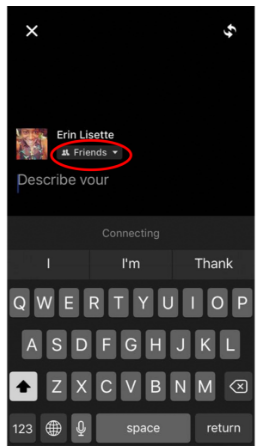
* You will be prompted to offer your live-stream a brief summary that will certainly aid audiences understand the topic of your event.


* Along with the summary you will have the choice to select the exposure settings, much like just how you would certainly on various other Facebook posts. You can choose "Public, "Friends", "Only Me", and also a variety of other setups depending on the target market you want for your live-streaming occasion.

* Once you have actually adjusted your settings and also provided a fast description you could touch the "Go Live" switch to begin your live-streaming occasion!


Live-streaming from a Facebook Web page:
When you are very first establishing a livestream for a business or company web page on Facebook there are 2 stages. Both phases could be finished with a mobile phone yet it might be less complicated to complete Stage 1 on a desktop or laptop computer.

Phase 1.
* Utilizing a laptop computer or home computer, log right into the Facebook account belonging to the admin of the business/organization page.
* Once you're logged in planning to the edge of heaven navigating bar at the really top of the page. You will see a dark blue arrowhead directing downwards. Click this.

* Check out the food selection of options and situate "Settings". Click this to go right into your setups.

* When you show up in "Settings" you need to be in the "General Account Settings" tab.


* As an admin you ought to see an option to "Confirm This Page" for the web page you would love to live-stream with.


* Fill in the prompts for a service contact number, country, and language. Later on click "Call me now" to make sure that Facebook can call you with a confirmation code.
* Get in the 4-digit code that Facebook sends to you then click "Continue".

Phase 2.
You will certainly be using your phone exclusively from this factor ahead and also could place your laptop computer or desktop away if you would certainly such as.

* Enter into the application store on the phone that you want to utilize for livestreaming as well as search "Facebook Web page Manager".


* Download this app.
* When the Facebook Page Manager is downloaded and install open it and continue through the tutorial as well as notice prompts.
* Once you permit it to access your Facebook account it ought to currently have your page( s) presented and also prepared to take care of.
* From right here you could go online merely by tapping the "Live" switch situated underneath heaven "Contact" button.


You will certainly be motivated to send a brief summary of your live-streaming occasion and also from there you ready to go!

How to Access Facebook Full Site on Mobile Phone | Latest Method 2018

Facebook has actually made it so very easy for us to accessibility Facebook Complete Website on any system on any tool. However, a few of the desktop computer variation functions are lacking on the mobile website or mobile applications. Nevertheless, we stay in a sophisticated kind of devices globe where absolutely nothing is complicated, so there are How to access Facebook full site on mobile phone, or you could state Facebook Complete Website. As the devices came to be increasingly more innovative, it resembles you could do anything on your smart device that you could do on your computer system. Social Networks have transformed our daily life to an excellent level. Facebook, Twitter, Google plus and also much more websites have done so a lot to us.

In this blog post, I will certainly assist you regarding the procedure of accessing Facebook Complete Website desktop computer variation in your Android as well as iPhone gadgets. Utilizing this overview you could open up a Facebook Complete Website desktop computer version on your Android phone, Apple iPhone, iPad, and so on.
Facebook Mobile

How to Access Facebook Full Site on Mobile Phone

Advantages of Facebook Complete Website Desktop computer Variation for Android as well as ios
You could delight in Facebook Complete Website Advantages. For android as well as ios for both it could be made use of.

Facebook Complete Website Desktop computer Variation for Android

There are two techniques to gain access to Facebook Complete Desktop computer website on your Android mobile phone. Both are straightforward methods, simply follow me very carefully.

Method 1- Utilizing your Internet browser alternative

Numerous renowned internet browsers like UC web browser and also google chrome internet browsers have original choice to access the desktop computer variation of all sites within their web browser, nevertheless not all internet browsers have this choice.

If you are utilizing Google Chrome internet browser, after that open it as well as open up the web link supplied listed below and also click the three dots on the appropriate leading edge to see the listing of alternatives and also inspect package stating "Demand Desktop computer Website." Currently, the web page will certainly refill, and also you will certainly have the complete desktop computer variation of Facebook.

If you are making use of UC web browser do the exact same, open the web browser as well as open up the web link given listed below and also click the 3 lines in center lower tab to obtain the choices web page, currently slide delegated have the setups web page, currently from there most likely to the defaults web page as well as click the option "Prefer desktop computer website" as well as now come back as well as refill to obtain the Facebook desktop computer variation.

Connect to gain access to in mobile internet browsers: http://www.facebook.com/home.php

If you are making use of a various internet browser or the indigenous Android internet browser, after that you might have this choice, yet if you do not after that attempt downloading and install UC web browser or google chrome internet browser to obtain the Facebook Complete Website computer system Desktop computer variation login on your android smartphone.

Lots of people have reported that Google Chrome sometimes tons back the mobile version after gain access to a brand-new web page from the desktop computer version open in the mobile internet browser, which could not be repaired by us. The designers need to include it as an alternative in the upcoming variation of Google Chrome to constantly ask for desktop computer website when asked for when in a tab. However, this never occurs in UC internet browser it functions great.

Method 2 - Utilizing various Hyperlinks

Nonetheless, if you do not have chrome or UC internet browser after that attempt the web links offered listed below to access the Facebook login complete variation in your mobile internet browser
Hyperlinks to attempt:

⦁ http://www.facebook.com
⦁ http://www.facebook.com?m=0
⦁ http://www.facebook.com/home.php
⦁ http://touch.facebook.com/home.php
⦁ https://www.facebook.com
⦁ https://www.facebook.com?m=0
⦁ https://www.facebook.com/home.php
⦁ https://touch.facebook.com/home.php

FACEBOOK

Facebook Complete Website Desktop computer Variation for iPhone toolsOnce more there are three approaches to accessibility Facebook Complete Website desktop computer version on your iPhone devices like Apple iPhone, iPad, iPod Touch, and so on. I have discussed all the three approaches listed below, so follow it thoroughly.


Approach 1 - Utilizing the Web browser setups

You could use the internet browser choices to obtain access to the Facebook Complete Website desktop computer version Apple iPhone. I have discussed the particular technique.

Open up the web link supplied listed below in your safari internet browser which you will certainly obtain an indigenous application on your iPhone gadgets.

Connect to open up: www.facebook.com

If you are making use of iOS9, iOS10 or the greater variation on your gadget after that click the share switch listed below in your web browser as well as click the last switch stating "Demand Desktop computer Website."

If you are utilizing iOS8 or reduced variation after that click the address bar or the web link as well as you will certainly have a fall with two alternatives on top, Include in Faves as well as Demand Desktop computer Website, click Demand desktop computer website to obtain the Facebook login complete variation

Method 2 - Utilizing various Hyperlinks
Nonetheless, if you do not have chrome or UC internet browser after that attempt, the web links offered listed below to access the Facebook login complete variation in your mobile web browser as you discussed over for Android tools also.

Hyperlinks to attempt:

⦁ http://www.facebook.com
⦁ http://www.facebook.com/home.php
⦁ http://touch.facebook.com/home.php
⦁ https://www.facebook.com
⦁ https://www.facebook.com/home.php
⦁ https://touch.facebook.com/home.php

Method 3 - Safari UA string Hack
There are typically several certifications in your internet browser to have verification of the websites you check out, so you could control them to have complete variations of any website that you go to.
It is a relatively complicated and also untidy procedure, which you discover via google "Safari UA String hack." Have a backup of your data and also attempt it out. It will certainly allow you to have complete variations of all the websites you go to.

Keep in mind: Never allow the "Demand desktop computer version " when you have accessed the LINK "m.facebook.com" which will certainly take you to the iPad or Tablet pc version of Facebook which is simply in zoom variation of the first Facebook variation.

If you are making use of various other running system phones like home windows, after that you could attempt the web links given over or look for the Demand desktop computer website alternative in your internet browser. There is absolutely nothing much we could aid you out.


How to Download Your Photos From Facebook

Facebook is among the largest image directory site worldwide with greater than 1 billion pictures on-line! Unlike Instagram which is likewise owned by Facebook but makes it hard to download photos, in Facebook it is very easy to download or conserve any picture that you see. Nevertheless sometime you may not be able to see where to click in order to save or download and install those photos, as well as that is why you are reading this message.


THE BEST WAYS TO DOWNLOAD FACEBOOK PHOTO UTILIZING A FACEBOOK APP
You can utilize Facebook application to download images as well as this is peaceful very easy, just adhere to these steps:

Open your Facebook application, scroll or search the picture that you want to download.


Tap on that image and it will be opened in a box.


Then the final action is to tap and also hold on that photo for couple of seconds till you see the food selection with choice to conserve or share your picture.


Your photo will be conserved, you will just have to navigate to where you keep your downloaded and install images.